
Optimizing WordPress images sounds simple until you try doing it on a live site. Reducing file size is the easy part. The real challenge is making those changes without breaking media URLs, post content, featured images, builder blocks, or old references already used across the site.
This is where many workflows fail. A plugin may compress files, but once formats change or paths move, live content can break. That usually means missing images, wrong media references, or pages still serving the old heavy files even after optimization is “complete.”
A proper WordPress image optimization workflow should do more than compress images. It should also protect the structure of the site.
Why image optimization on WordPress becomes risky
On a small site with a few uploads, manual replacement might still work. On a real production site with hundreds or thousands of media files, it becomes dangerous very quickly.
Common problems include:
- images converted to WebP but old PNG or JPG references remain in posts
- featured images still pointing to older media paths
- page builders storing image URLs inside custom fields
- media libraries showing updated metadata while the live front-end still serves the old file
- large bulk jobs consuming too much CPU or memory on the live server
This is why “compress and hope” is not a safe strategy for WordPress.
What a safe workflow should actually do
A serious optimization workflow should cover five things:
- compress or convert images efficiently
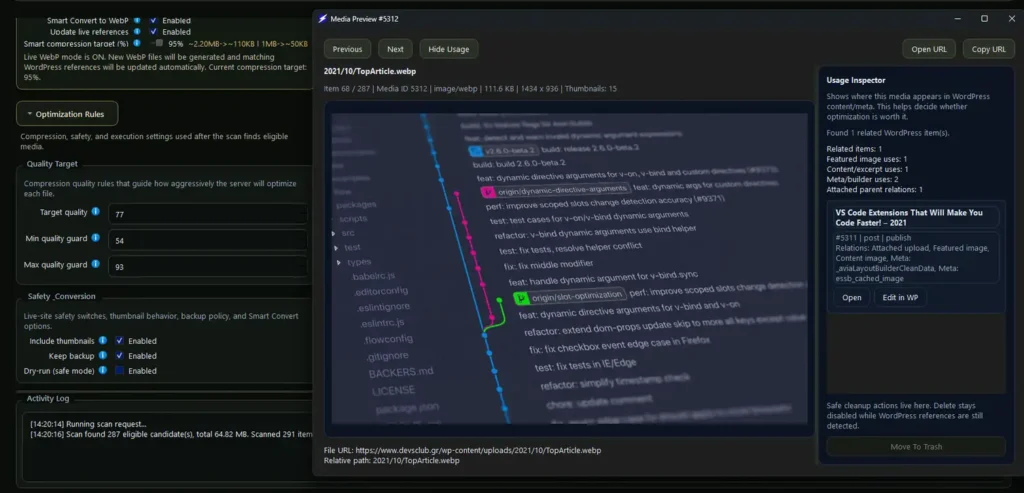
- inspect where media is used
- update matching live references when needed
- keep backups or rollback options
- avoid breaking production content
That last point matters most. If an image gets smaller but a live article loses its media, the workflow failed.
Local optimization vs live WordPress optimization
There are two valid ways to handle image optimization.
1. Local desktop optimization
This is the safest place to start. Images are processed locally, using your own system resources instead of server CPU and RAM. That means faster batch work and less risk to production uptime.
This approach is ideal for:
- preparing new blog images before upload
- compressing folders in bulk
- converting JPG and PNG to WebP before publishing
- reviewing before/after results locally
2. Live WordPress optimization
This is where things become more powerful, but also more sensitive. Existing media already lives inside real content, themes, builders, and metadata. If optimization changes file references, the system must update those references safely.
A live workflow only works properly when the tool understands both the media files and the WordPress relationships around them.
Why WebP conversion breaks some WordPress sites
WebP is one of the biggest wins for image performance, but it often exposes weak workflows.
If a tool converts:
image.png -> image.webp
but does not update the places where image.png is referenced, then the site still tries to load the original PNG. In some cases WordPress metadata updates correctly while the article HTML still points to the older file. The result is confusion: the media library may show one size, while the real page still loads another.
That is why WebP conversion alone is not enough. For live WordPress sites, conversion must be paired with reference awareness.
The role of safe reference updates
When image paths or extensions change, the workflow should detect and update matching references in places such as:
- post content
- excerpts
- featured image relationships
- post meta
- builder-related fields
- attachment-linked usage
Without this layer, “live optimization” is incomplete.
A safer system updates references only where needed and keeps rollback available if anything behaves unexpectedly.
Why rollback matters
Even with a careful workflow, production changes should never be one-way.
A rollback-aware optimization process gives you room to:
- test on real media safely
- verify visual quality first
- undo changes if needed
- recover from unexpected builder or cache behavior
For agencies, publishers, and site owners, rollback is not a luxury feature. It is what makes live optimization usable.
How ZeusOpt approaches WordPress image optimization
ZeusOpt is built around the idea that optimization is not just compression. It is media control.
That means the workflow is designed to support:
- local batch optimization
- WordPress-connected media operations
- Smart WebP conversion
- safe live reference updates
- usage inspection before changes
- rollback-aware handling
Instead of only making images smaller, ZeusOpt focuses on making optimization operationally safe.
Best practices before optimizing a live WordPress media library
Before running a live job, follow a few simple rules:
Start with a smaller subset
Do not begin with the entire library. Test a smaller batch first and verify the front-end result.
Review actual usage
If an image is heavily used, check where it appears before modifying or removing it.
Use backups or rollback-aware mode
This should be non-negotiable for live sites.
Confirm how references are handled
If your workflow converts formats, make sure it also handles matching references.
Watch the real front-end, not only the media library
The WordPress admin may show updated metadata even when the public page still serves old assets.
Final takeaway
The best WordPress image optimization workflow is not the one that produces the smallest file. It is the one that improves performance without damaging the site.
If you want to optimize WordPress images safely, especially when converting to WebP or changing existing media, you need a workflow that understands live references, production risk, and rollback.
Compression alone is not enough. Safe media control is the real upgrade.